
Can I Open My Automatic Gate With My Smartphone?
Yes, through an added accessory — not a feature built into the base operator. LiftMaster documents the Internet Gateway (Model 828LM), which connects your gate operator to your WiFi network so you can monitor and control it — enabled by myQ technology — from an app. The same accessory table also lists a Smart Video Intercom (Model CAPXLV), a separate product for a different job that the manual names but doesn’t detail. Here’s what’s actually documented for each.
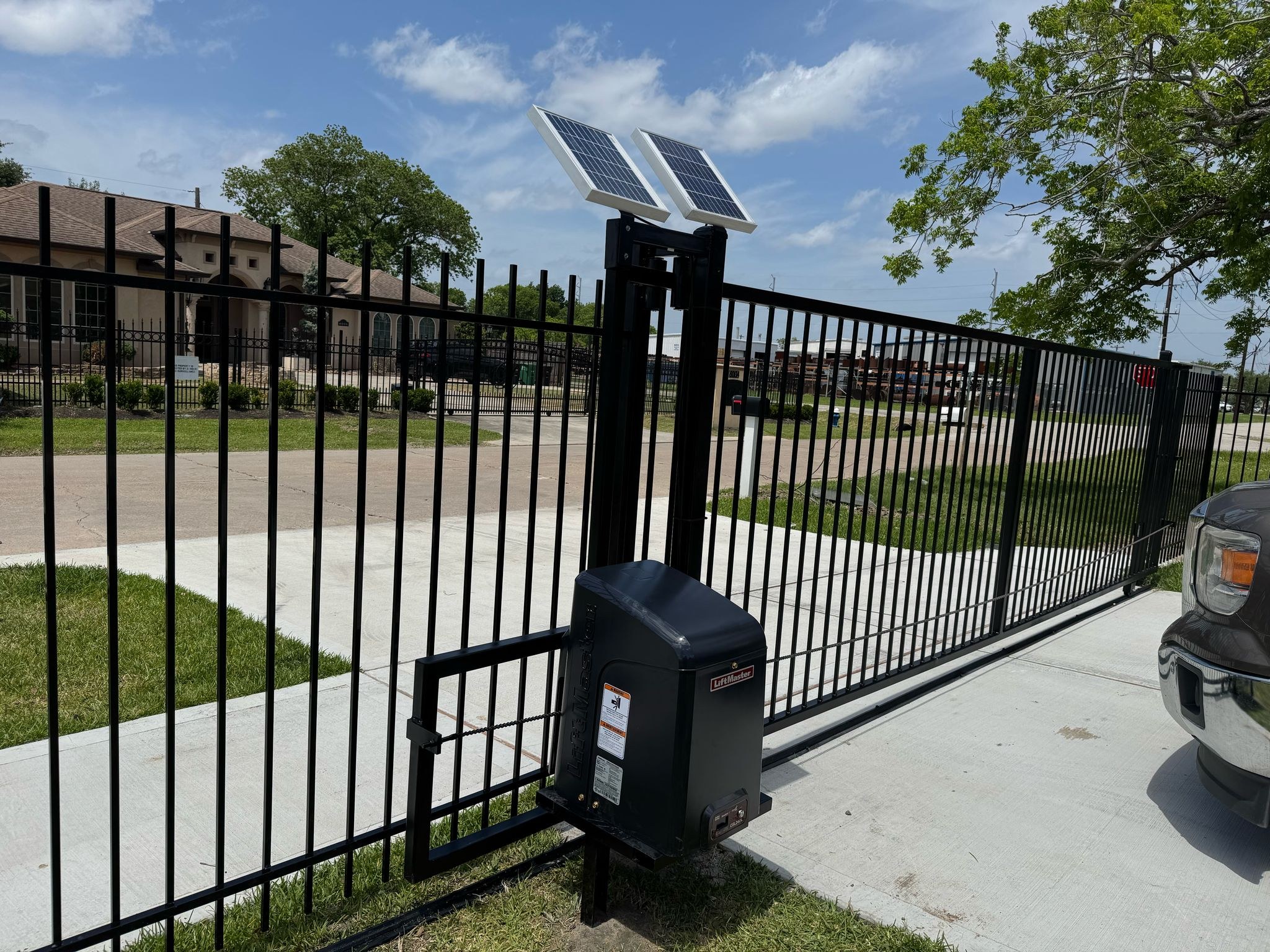
Yes, with an accessory added to the gate operator — and it’s worth knowing there are two different ones, not one “smartphone feature.” LiftMaster’s CSL24UL and CSW24UL installation manuals both list an Internet Gateway (Model 828LM) in their Accessories sections: an internet-enabled unit that connects the gate operator to your WiFi network and, enabled by myQ technology, lets you monitor and control the operator (plus lighting accessories) from an app. Setup involves creating a free account at myliftmaster.com, registering the Gateway, and adding devices from your phone during a 3-minute pairing window — after which the app shows the gate’s status as “open” or “closed” and can control it directly. The same accessories table also names a Smart Video Intercom (Model CAPXLV), a separate product line for a different purpose that the manual doesn’t elaborate on beyond its name and model number.
Sources: LiftMaster CSL24UL installation manual; LiftMaster CSW24UL installation manual (Accessories and Programming sections).
Smartphone gate control is an added accessory, not a built-in feature
Neither LiftMaster manual describes smartphone control as something the operator does on its own — it’s documented as an added accessory. The CSL24UL and CSW24UL installation manuals both list a “LiftMaster Internet Gateway” (Model 828LM) in their Accessories sections: it connects the gate operator to your WiFi network and, enabled by myQ technology, lets you monitor and control the operator and lighting accessories from an app. The same accessories table in the CSW24UL manual also names a “LiftMaster Smart Video Intercom – L” (Model CAPXLV) — a separate, differently-purposed accessory the manual doesn’t describe beyond its name and model number. Treating these as one feature is the most common mix-up: they’re two different products. For how the operator itself normally runs, see our automatic gate installation page.
How the Internet Gateway actually connects to your phone
The CSW24UL manual’s Programming section spells out the setup in order: connect an Ethernet cable between the Internet Gateway and your router, power the Gateway, then “Create an online account by visiting www.myliftmaster.com” and “Register the LiftMaster Internet Gateway.” From there, you “Use an internet enabled computer or smartphone to add devices” — the Gateway stays in pairing (“learn”) mode for three minutes while you do this. The last step happens at the operator itself: press the Learn button twice on the primary operator, and “The LiftMaster Internet Gateway will pair to the operator if it is within range and the operator will beep if programming is successful.” Once paired, the manual states plainly: “The status as shown by the LiftMaster Internet Gateway app will be either ‘open’ or ‘closed’. The gate operator can then be controlled through the LiftMaster Internet Gateway app.”
Side by side
| Internet Gateway (828LM) | Smart Video Intercom (CAPXLV) | |
|---|---|---|
| What the manual says it does | Connects the operator to WiFi; monitor/control via myQ app | Named in the accessories table; features not detailed |
| Account needed | Free account at myliftmaster.com | Not documented in this manual |
| App shows | “Open” or “closed” gate status | Not documented in this manual |
| Pairing method | Learn button on operator, paired from your phone | Not documented in this manual |
| Listed in | Both CSL24UL and CSW24UL manuals | CSW24UL manual (as CAPXLV); CSL24UL manual lists a related “Cloud connected access protocol,” Model CAPXL |
Sources: LiftMaster CSL24UL / CSW24UL installation manuals, Accessories sections.
Which smartphone accessory fits what you want?
These are two different LiftMaster accessories for two different jobs. Pick what you actually want to do.
Based on the LiftMaster CSL24UL / CSW24UL installation manuals’ Accessories and Programming sections.
What Galveston customers say
5.091 Google reviews · read them all on Google
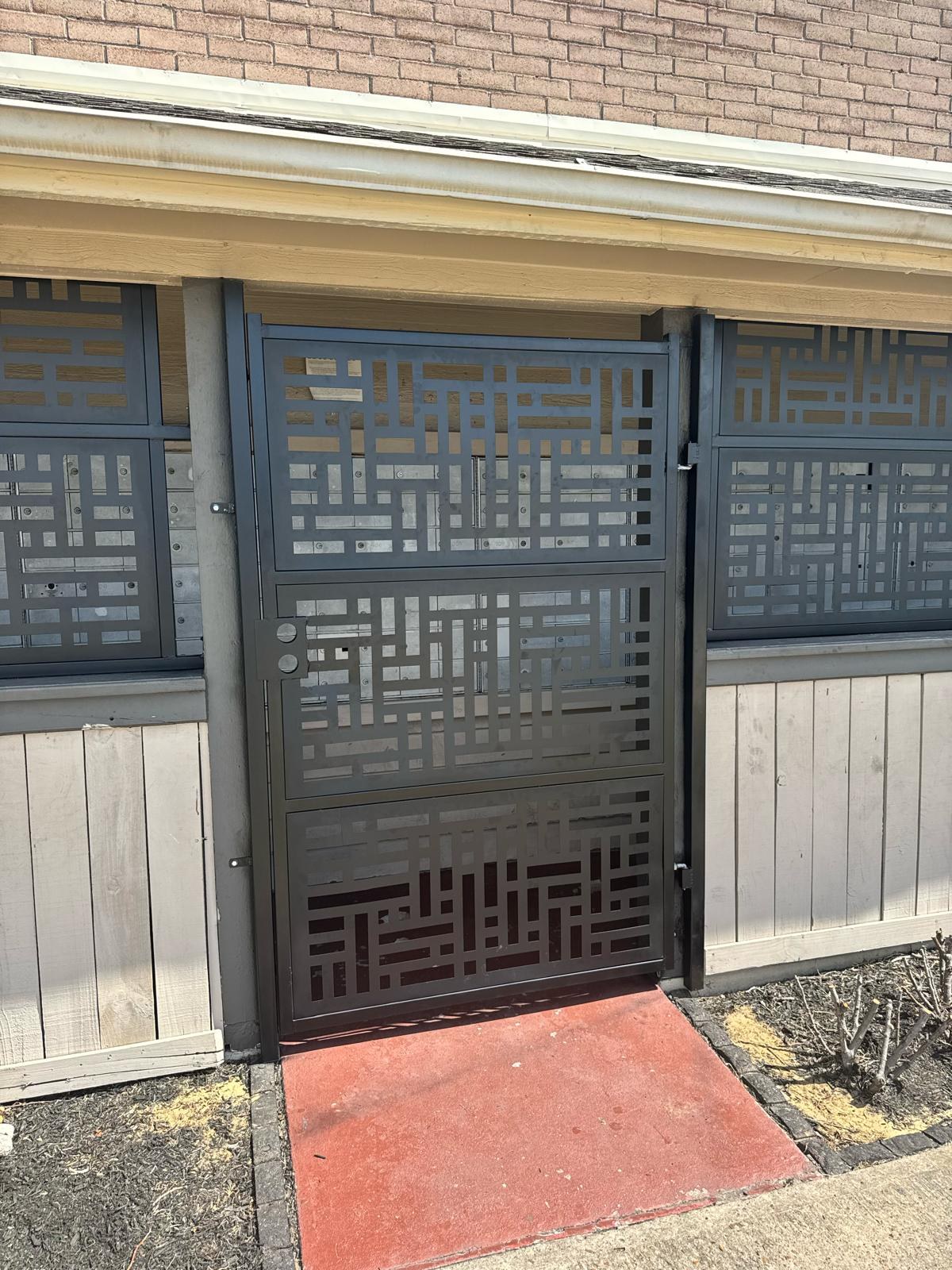
Very professional and friendly. Gotten automatic gates done and they are done to perfection! Thank you
We just installed iron gate and it looks amazing thank you very much mustang fencing .
Mustang Fencing Services was dependable and honest from start to finish. They stuck to our timeline and budget, and the fence looks fantastic. I appreciate their hard work and would recommend them to anyone.
Reviews shown word for word from the Mustang Fencing Services Google Business Profile (Galveston), captured 2026-10-12.
Questions we get about this
Can I open my automatic gate with my smartphone?
Do I need an account to use the Internet Gateway app?
What does the app show about my gate?
Is the Smart Video Intercom the same as the Internet Gateway?
Will this work with any gate operator?
Sources
Checked October 15, 2026. Rules change, so confirm with the City before you build.
- LiftMaster CSW24UL Swing Gate Operator Installation Manual — Internet Gateway (Model 828LM) accessory listing and its Programming-section setup/pairing steps; Smart Video Intercom (Model CAPXLV) accessory listing.
- LiftMaster CSL24UL Slide Gate Operator Installation Manual — Internet Gateway (Model 828LM) accessory listing and the related Cloud connected access protocol (Model CAPXL) accessory listing.
Want app-based control on your gate?
We’ll check which operator you have, confirm whether the Internet Gateway accessory is documented for that model, and walk through the myQ setup and pairing steps with you.